Install the CLI, sign in on your computer, and give CI a key of its own.
Install
$ npm install -g @valiqai/cliOr run it without installing, which is what most CI setups do:
$ npx -y @valiqai/cli scan https://staging.example.comCheck it's installed with valiqai --version.
Sign in
On your computer, sign in from the browser:
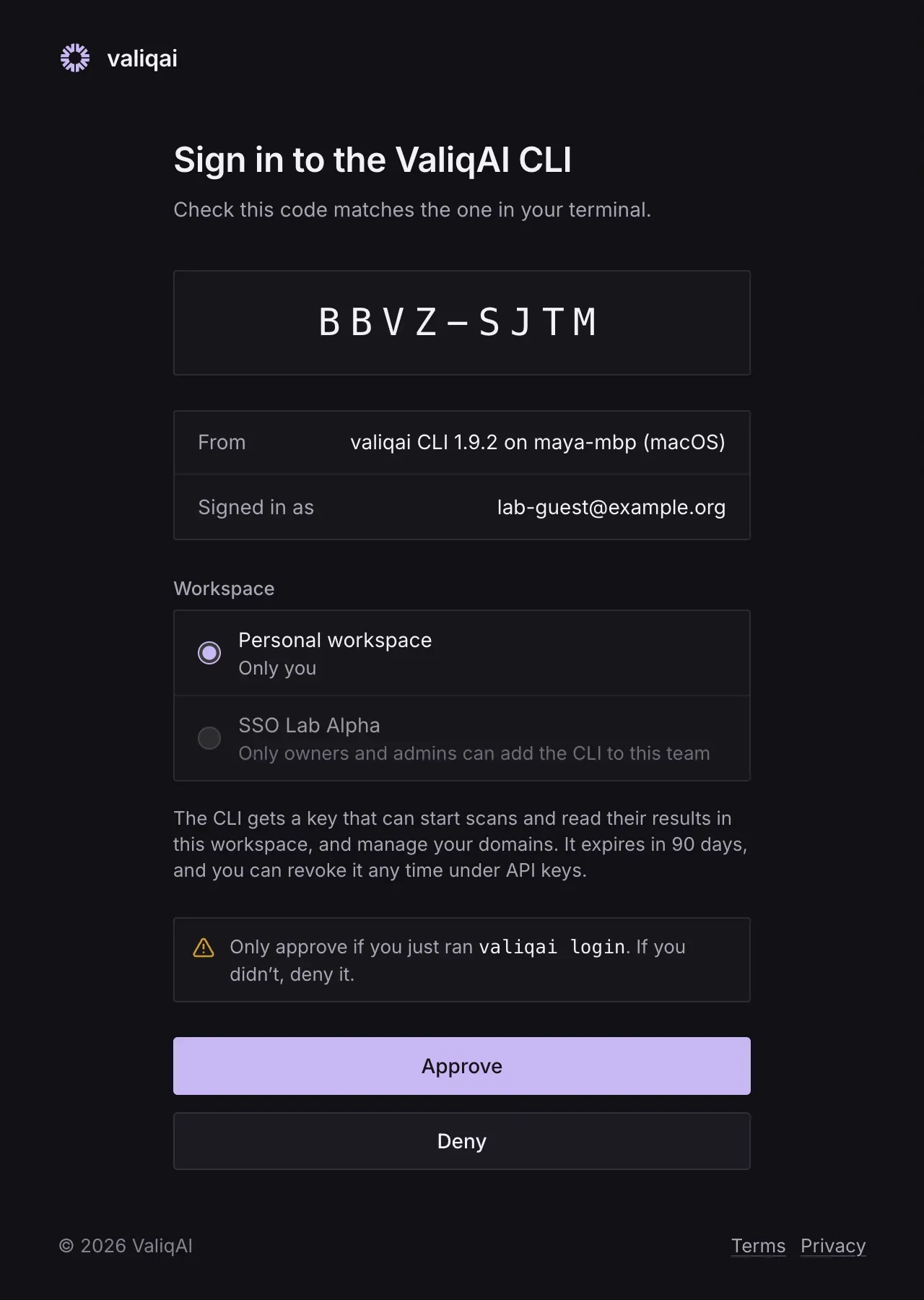
$ valiqai loginOpening https://www.valiqai.com/cli/approve?code=WDJB-MJHT in your browser.Check the code there matches: WDJB-MJHTWaiting for you to approve...✓ Logged in as Maya Chen · Northstar (team)The key is saved on this computer and expires Sun Jan 17 2027.The page shows the same code, which computer asked, and the workspaces you can use. Pick one and approve. The CLI gets its own API key for that workspace, named after your computer (like "CLI · maya-mbp"). It expires in 90 days, appears with your other keys under API keys, and valiqai logout revokes it.
- Over SSH, or with no browser:
valiqai login --no-browserprints the page to open on another device. - With a key you already have:
valiqai login --key valiqai_.... - Approving for a team needs a team owner or admin (whoever can change the team's integrations), and the team's plan must include API access.
Workspaces
You can be signed in to several workspaces, your personal one and teams, each with its own key. Commands use the active one.
$ valiqai switch? Use which workspace? (Use arrow keys)❯ Personal workspace Northstar (team) current Sign in to another workspace…valiqai switch northstarchanges it directly, by the workspace's name or slug.--workspace northstaron any command uses another workspace once, and so does theVALIQAI_WORKSPACEvariable.valiqai whoamishows who you are, the workspace, and the key in use.
Which key is used
VALIQAI_API_KEY, when it's set. In CI, always use this, from your CI system's secrets.--workspace, orVALIQAI_WORKSPACE.- The workspace named in this folder's
valiqai.json, if you're signed in to it. - The active workspace.
About keys
- Keys start with
valiqai_and are shown once, when you create them. Store them like a password. - Keys you create in the app expire after 30, 90 or 365 days, or never, whichever you chose. An expiry date is safer for keys stored in CI.
- The CLI needs the
scanandreadpermissions (the defaults). - A team key bills scans to the team. A personal key bills your personal workspace.
Keys for CI
Use a team key in CI (Team settings › API keys). Scans it starts are billed to the team, it keeps working when the person who made it leaves, and it can scan any domain a member of the team has verified.
When you make a key, you can also:
- Set a monthly credit limit. Once the key's scans have used that many credits in a calendar month, it stops starting scans and says so, until the 1st or until someone raises the limit. The key's row shows what it has used this month.
- Pick when it expires. 90 days is the default. Never works too, but such a key keeps working wherever it ends up until someone revokes it.
Rotate a key from its menu to get a new one with the same name, access, limit and lifetime. The old key keeps working for 24 hours, so you can update the secret before it stops. Each key's row shows when it was last used, from which IP, and from which CLI version, so a forgotten key is easy to place. Making, rotating and revoking keys shows in the workspace's activity.
Next: link this folder to a site, or add a scan to CI.